 EZVIZ no longer supports Internet Explorer 10 or earlier versions, and the site may not behave as expected. Please upgrade to a newer browser.


 Store
Store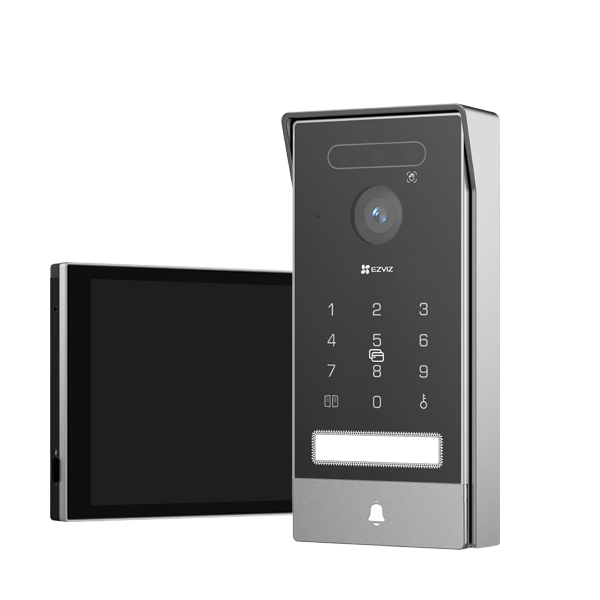

Tutorial Video

FAQ

Manuals

Datasheet


- HP7 Pro-8MP,Troubleshooting power supply and display unresponsiveness issues.
If your HP7 Pro-8MP's monitor or doobell is not powering on or responding, follow these steps. For the monitor, use the original power adapter and ensure it is firmly plugged into a working wall outlet. For the outdoor unit, verify all wiring connections meet manual specs, use the original power supply, and try alternate pin connections (pins 3 and 4 instead of 1 and 2). Test input voltage with a multimeter. If the issue persists, prepare the 9-digit serial number, clear pictures of wiring, a video showing the problem, and the voltage test result for support(www.ezviz.com). Always use original accessories to avoid damage.
- HP7 Pro-8MP,How to change the display language ?
Screen language: 1 Go to HP7's screen 2 Choose Frimware 3 Click Language to change the one you need APP language: Step 1: Log in to your EZVIZ account, tap the Account button in the lower right corner of the Home Page Step 2: Tap Settings Step 3: Tap General Settings Step 4: Then tap Language and you would be able to select the language you would like to set and tap Save to complete the settings
- HP7 Pro-8MP,How to resolve missing preview images in push notifications?
1 Check Video Encryption Status Go to Device Settings > Privacy Settings > Video Encryption in the EZVIZ App (for some models, the path is Device Settings > Image Encryption) to confirm whether video encryption is enabled. Please make sure the status is disabled; 2 Check Network Connection If encryption is already disabled (status shows "Unencrypted") but preview images are still missing, ensure that both the Wi-Fi network the device is connected to and your phone's mobile data network are stable with good signal strength. 3 Alternative Viewing Method If the issue persists after the above steps, or if the device does not support this feature, it is recommended that after receiving a push notification, open the EZVIZ App directly and go to Library or Event Page to view the full alarm images and video information.
- Can I add more screens to the smart home video doorphone?
Yes, you can integrate additional screens with your smart home video doorphone. Specifically, you can connect the doorphones with the SD7 smart screen. This is particularly beneficial for larger homes, as the SD7 extends the communication capabilities of your existing EZVIZ Video Doorphones.
By placing the SD7 in various areas of your home, such as the bedroom or kitchen, you can easily respond to doorbell rings without having to rush to a distant monitor. With just a few taps on the SD7, you can see who is at the door and grant access immediately.
For instructions of how to link the video doorphone to the SD7 smart screen, please refer to: How to add your EZVIZ devices to the SD7 smart screen?
- How many face recognitions and palm veins can be added to HP7 Pro?
Please note that up to 50 face recognitions and up to 20 palm veins can be added to HP7 Pro.